
Office Wi-Fi upgrades are often treated as a simple hardware replacement: remove the old access points, install newer models, and reconnect users. In practice, a successful upgrade depends on much more than the access point itself. Existing cabling, switch capacity, power delivery, network configuration, building layout, and business-critical applications all affect the result.
For Singapore businesses, the challenge is often completing the work in a live office, where meetings, cloud applications, point-of-sale systems, voice calls, and guest access must continue operating. A phased approach can modernise the network while keeping disruption under control.
Start with an upgrade assessment, not a shopping list
Before selecting new equipment, document how the current network is being used and where it is falling short. Complaints such as slow Wi-Fi, dropped calls, or weak coverage can have several causes. Replacing access points alone may not resolve an overloaded switch, poor cabling, incorrect channel settings, or an internet connection that is already saturated.
Review the office floor plan, access point locations, staff density, meeting rooms, reception areas, storage spaces, and any locations where mobile devices are used. Note the number and type of connected devices, including laptops, smartphones, printers, scanners, cameras, voice handsets, and building systems.
This assessment should also identify business-critical traffic. A finance workstation, a warehouse scanner, and a guest smartphone may all use Wi-Fi, but they do not have the same operational importance. Understanding these differences helps shape network segmentation, access policies, and capacity planning.

Check whether the existing cabling and switches are ready
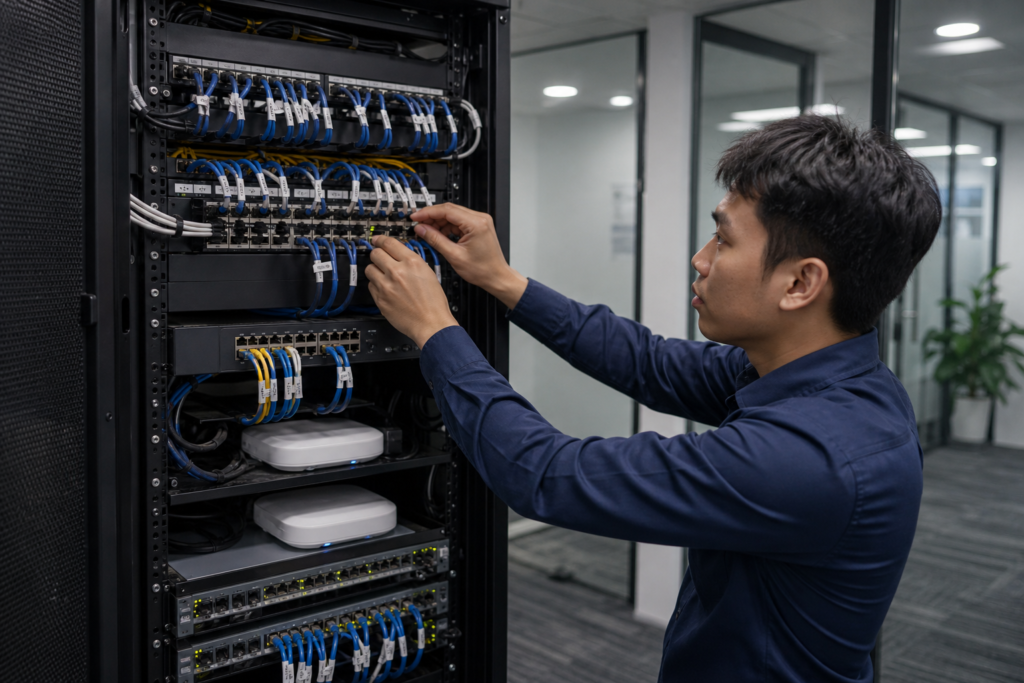
New access points can require more power and higher uplink capacity than older models. That makes the wired network underneath the Wi-Fi design especially important. Inspect the Ethernet cabling, patch panels, wall outlets, and switch ports before installation begins.
Where access points use Power over Ethernet, confirm that the switches provide the required PoE standard and have enough available power budget. A switch may have spare ports but still lack sufficient power for every connected device. It is also worth checking whether the uplinks between switches and the core network can handle the expected traffic.
Look for common issues such as:
- Unlabelled or incorrectly patched cables;
- Older cable runs that do not support the planned performance;
- Switches operating near their port, power, or uplink limits;
- Access points connected through unsuitable intermediate equipment; and
- Network cabinets without adequate ventilation, organisation, or power protection.
If the physical network needs improvement, complete that work as part of the upgrade plan rather than treating it as an unrelated problem. A reliable Wi-Fi service depends on both the wireless and wired layers.
Decide what should be reused and what should be replaced
Not every part of an existing installation needs to be discarded. Reusing suitable cabling, cabinets, patch panels, or switches can control project cost and reduce installation time. However, reuse should be based on capability and condition, not simply on whether a component still powers on.
For example, an older switch may support basic connectivity but lack the PoE capacity, management features, or uplink speed required by a modern access point deployment. Similarly, an access point may appear functional while no longer receiving security updates or providing the capacity needed in busy areas.
A practical replacement decision considers:
- Technical compatibility with the proposed access points;
- Manufacturer support and firmware availability;
- Available monitoring and management controls;
- Physical condition and expected service life; and
- Whether the component supports future expansion.
Businesses planning a broader refresh may also review their system integration and IT setup requirements at the same time. Coordinating related infrastructure work can avoid repeated ceiling access, cabling work, and after-hours visits.
Plan the migration in phases
A phased migration is usually safer than changing every access point at once. It provides an opportunity to validate the configuration in a limited area before extending it across the office.
1. Prepare the configuration
Set up the proposed wireless networks, authentication methods, VLANs, access policies, firmware, naming conventions, and monitoring before the installation window. Record the existing configuration so that rollback is possible if an unexpected issue occurs.
2. Pilot one representative area
Choose an area that reflects normal business use, such as a department with laptops, meeting-room activity, voice calls, and mobile devices. Do not select only a quiet corner of the office. The pilot should reveal practical issues with roaming, authentication, application access, and device compatibility.
3. Migrate in manageable groups
Replace access points by zone, floor, department, or business function. Keep users informed about the planned window, and avoid migrating an entire department immediately before an important presentation, sales call, or operational deadline.
4. Confirm service before moving on
After each area is migrated, test both ordinary connectivity and business applications. Once the results are accepted, proceed to the next zone. This approach makes it easier to identify the source of a problem and limits the number of affected users.
Test more than signal strength
A Wi-Fi signal indicator on a laptop does not tell the whole story. A strong signal can still accompany poor performance if the channel is congested, the access point is overloaded, or the wired uplink is constrained.
Testing should reflect the way employees actually work. Check authentication, internet access, internal applications, cloud services, printing, file access, and movement between coverage areas. If the organisation uses voice or video collaboration, test calls while users move between access points and during periods of normal activity.
It is useful to record results for each zone, including:
- Connection and authentication success;
- Application response and throughput;
- Roaming behaviour between access points;
- Performance in meeting rooms and high-density areas; and
- Connectivity for approved older devices that still need support.
Where voice and video are important, wireless testing should be considered alongside wider traffic management. The guidance in planning bandwidth and QoS for clear unified communications can help teams assess whether the network is prepared for real-time traffic.
Keep security and operations aligned
An office Wi-Fi upgrade is also an opportunity to review who can connect, what they can access, and how network events are monitored. Separate staff, guest, device, and administrative traffic where appropriate. Use strong authentication for internal access, disable unused services, and establish a process for firmware updates.
Do not overlook operational documentation. Record access point locations, switch ports, IP addresses, VLAN assignments, administrator accounts, support contacts, and recovery procedures. A clear network diagram can save considerable time when a fault occurs or when the office layout changes.
Monitoring should provide visibility into unavailable access points, unusual client behaviour, capacity pressure, authentication failures, and recurring interference. The goal is not to collect reports nobody reviews, but to give the responsible team useful information for maintenance and troubleshooting.
Plan the work around Singapore office conditions
Installation planning should account for the realities of the premises. Office towers may have access restrictions, visitor registration requirements, fixed working hours, and limited periods for noisy work. Retail, hospitality, education, and healthcare environments may have additional operational constraints.
Coordinate with building management where ceiling access, riser access, or cable routes are involved. Confirm whether ladders, lifting equipment, permits, or after-hours access are required. For occupied offices, protect desks and equipment, keep cable work tidy, and define how users will be notified if a brief interruption is necessary.
These details may seem administrative, but they reduce avoidable delays and help ensure that the technical design can be installed as intended.
When to involve a networking specialist
Professional support is particularly useful when the office has multiple floors, dense meeting-room usage, mixed wired and wireless devices, strict access controls, or little tolerance for downtime. A specialist can assess the physical network, prepare a migration sequence, coordinate installation, and validate the completed deployment.
For businesses comparing a Wi-Fi AP and networking solution in Singapore, ask prospective providers how they handle site assessment, PoE verification, configuration backups, pilot testing, documentation, and post-installation support. The equipment list matters, but the delivery process often determines whether the upgrade succeeds.

A practical final checklist
Before closing the project, confirm that:
- Access point locations match the approved plan;
- All required switches, uplinks, and PoE connections are operating normally;
- Staff, guest, device, and administrative access behave as intended;
- Business applications have been tested in representative areas;
- Roaming, voice, and video performance have been reviewed where relevant;
- Firmware, monitoring, and alerting are configured;
- Network diagrams and asset records have been updated; and
- Users know how to report problems after the change.
Upgrade with less disruption and more confidence
Modernising office Wi-Fi does not have to mean replacing everything at once or accepting extended downtime. By assessing the existing infrastructure, checking PoE and cabling, piloting the design, migrating in phases, and testing real business activity, Singapore organisations can make a controlled improvement to their network.
Need help reviewing an office Wi-Fi upgrade? Data Dynamics can assist with networking assessment, access point deployment, infrastructure integration, and ongoing support. Contact the team to discuss your premises, users, and upgrade priorities.