
When employees say that the office Wi-Fi is slow, the problem may not be the Wi-Fi access point itself. A crowded radio channel, weak backhaul, faulty cable, overloaded switch, misconfigured network, or internet service issue can create very similar symptoms.
A structured diagnosis helps you avoid replacing equipment unnecessarily. This guide explains how to troubleshoot common business Wi-Fi faults and when to engage a professional provider for a Wifi AP and Networking Solution in Singapore.
Start by defining what “slow Wi-Fi” means
Before changing settings, record the exact complaint. “The Wi-Fi is bad” is difficult to troubleshoot, while “video calls drop in the meeting room after 2 p.m.” gives an engineer a useful starting point.
Ask a few basic questions:
- Does the issue affect one user, several users, or everyone?
- Does it occur in one room, on one floor, or throughout the premises?
- Is the problem slow browsing, failed connections, high latency, or frequent disconnections?
- Does it affect all devices, or only older laptops, mobile phones, or specialised equipment?
- Does the fault happen at particular times, such as during meetings or peak office hours?
These details help separate a device-specific fault from a wireless, switching, or internet connectivity problem.
Use a simple isolation process
Test the same application or website from different locations, including close to an access point and in the area where users report trouble. If performance improves significantly near the access point, coverage, interference, or roaming may be involved. If the connection remains slow everywhere, investigate the wired network, firewall, or internet service.
Where possible, compare three tests:
- A wireless test from the affected location.
- A wireless test near the nearest access point.
- A wired test from a network port connected to the same business network.
If wired and wireless users experience the same slowdown, the access points may not be the primary cause. If only wireless users are affected, focus on radio conditions, access point configuration, device compatibility, and wireless capacity.

Check the access point and its location
Business access points should be installed where they can serve users effectively, rather than hidden inside cabinets, behind large objects, or at the edge of the area they are expected to cover. Walls, glass partitions, shelving, equipment, and building materials can affect signal quality.
Check whether the access point is powered, online, and connected to the intended network. Many managed systems provide information about connected users, channel use, transmit power, and alerts. Review these records instead of relying only on the signal bars shown on a laptop or phone.
Also consider whether the access point is carrying more users or traffic than expected. A single unit serving an open office, several meeting rooms, and high-bandwidth applications may deliver inconsistent performance even when the signal appears strong.
Look for radio interference and channel congestion
Wi-Fi shares radio spectrum with nearby networks and other wireless equipment. In a dense commercial building, neighbouring offices may be using overlapping channels. Wireless devices, some peripheral equipment, and physical obstructions can also contribute to an unstable connection.
Common warning signs include:
- Good signal strength but poor throughput.
- Performance that varies as users move between rooms.
- Disconnections during busy periods.
- One band performing well while another performs poorly.
Do not assume that increasing transmit power is the right solution. Excessive power can make cells overlap more than necessary and may cause devices to hold onto a distant access point instead of roaming cleanly. Channel selection, access point placement, channel width, and client behaviour should be reviewed together.
Inspect switches, PoE, and network cabling
Wireless access points depend on the wired network behind them. A damaged cable, unsuitable switch port, failed Power over Ethernet connection, or incorrect uplink can make an access point appear unreliable.
Check the following:
- Whether the switch port is reporting errors or repeated link changes.
- Whether the access point is receiving stable PoE power.
- Whether the port negotiates at the expected speed.
- Whether the access point is connected to the correct VLAN or network segment.
- Whether uplink capacity is sufficient for the number of connected access points and users.
Intermittent faults can be difficult to identify because an access point may restart, disconnect, or reduce performance without appearing completely offline. Testing the cable, switch port, patch panel, and power budget can reveal problems that a wireless survey alone will miss.
Review network segmentation and authentication
Many offices separate staff, guest, voice, security, and device traffic using VLANs or different wireless networks. This improves control, but a configuration error can prevent users from reaching applications, obtaining an IP address, or accessing the internet.
Review whether affected users receive a valid IP address, gateway, and DNS information. Confirm that DHCP scopes are not exhausted and that firewall rules allow the traffic required by the relevant user group. Guest Wi-Fi should normally be isolated from internal business systems, while staff networks may require access to servers, printers, or cloud applications.
Authentication problems can also look like poor Wi-Fi. If users are repeatedly prompted to sign in, disconnected after joining, or unable to roam between access points, check the identity service, certificates, credentials, and wireless security settings.
Separate a Wi-Fi fault from an internet fault
Office users often describe every connectivity issue as “the Wi-Fi,” even when the wireless connection to the access point is healthy. Test internal resources as well as external websites. If a user can reach a local printer or internal service quickly but cloud applications are slow, the issue may involve the firewall, internet circuit, DNS, or an external service.
Check whether the firewall is reporting high utilisation, blocked traffic, failed sessions, or unusual bandwidth consumption. Large downloads, cloud synchronisation, software updates, guest usage, and video traffic can affect available capacity. Quality-of-service policies may be appropriate for business-critical voice or video traffic, but they should be designed around actual requirements rather than applied blindly.
Consider roaming and application behaviour
Users moving around an office may remain connected to a distant access point for too long. This can cause low data rates, delayed handovers, or interrupted calls. Roaming performance depends on access point placement, radio design, client devices, and configuration.
Voice and video applications are particularly sensitive to latency, packet loss, and jitter. A basic speed test may look acceptable while a video call still freezes. For these applications, review performance during real use and examine whether the problem follows a person, a room, an access point, or a particular device model.
When should you upgrade or redesign the network?
Replacement is worth considering when equipment no longer receives security updates, cannot support the required authentication method, lacks adequate capacity, or does not provide useful monitoring. However, newer access points will not correct poor cabling, unsuitable placement, insufficient switching, or an undersized internet connection on their own.
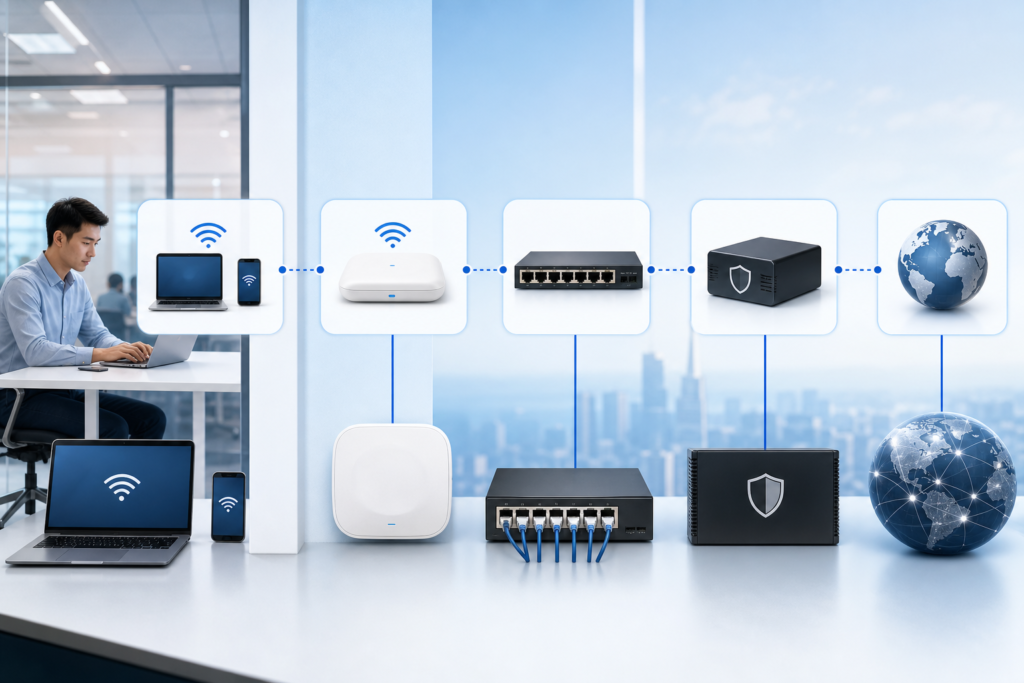
A practical review should consider the whole path: user device, radio connection, access point, cable, PoE switch, uplink, firewall, and internet service. For offices that are changing layouts, adding meeting rooms, or supporting more cloud-based applications, a broader system integration and IT setup assessment may be more suitable than replacing individual devices.
A useful handover checklist for your IT provider
Before requesting assistance, collect the information below:
- Locations, dates, and times when the issue occurs.
- Names of affected wireless networks and areas.
- Examples of affected devices and applications.
- Whether wired users experience the same problem.
- Recent changes to access points, switches, cabling, firewalls, or internet services.
- Relevant screenshots, error messages, and connection test results.
This information allows a provider to begin with evidence instead of guessing. It can also help distinguish an urgent outage from a longer-term capacity or design issue.

Get help with business Wi-Fi in Singapore
Reliable wireless networking depends on more than access point quantity. Coverage, capacity, switching, security, cabling, monitoring, and support all contribute to a network that staff can use confidently.
If your office is experiencing recurring dropouts, poor meeting-room performance, or unexplained slowdowns, Data Dynamics can help review the network requirements and identify an appropriate solution. Contact Data Dynamics about business Wi-Fi and networking solutions in Singapore for a practical assessment of your access points, network infrastructure, and connectivity needs.